How to Export CCTV Footage for Police (Hikvision, Dahua, UniFi)
The worst time to learn how your CCTV exports footage is the morning after a break-in, with an officer standing in your driveway. Here's the whole process.
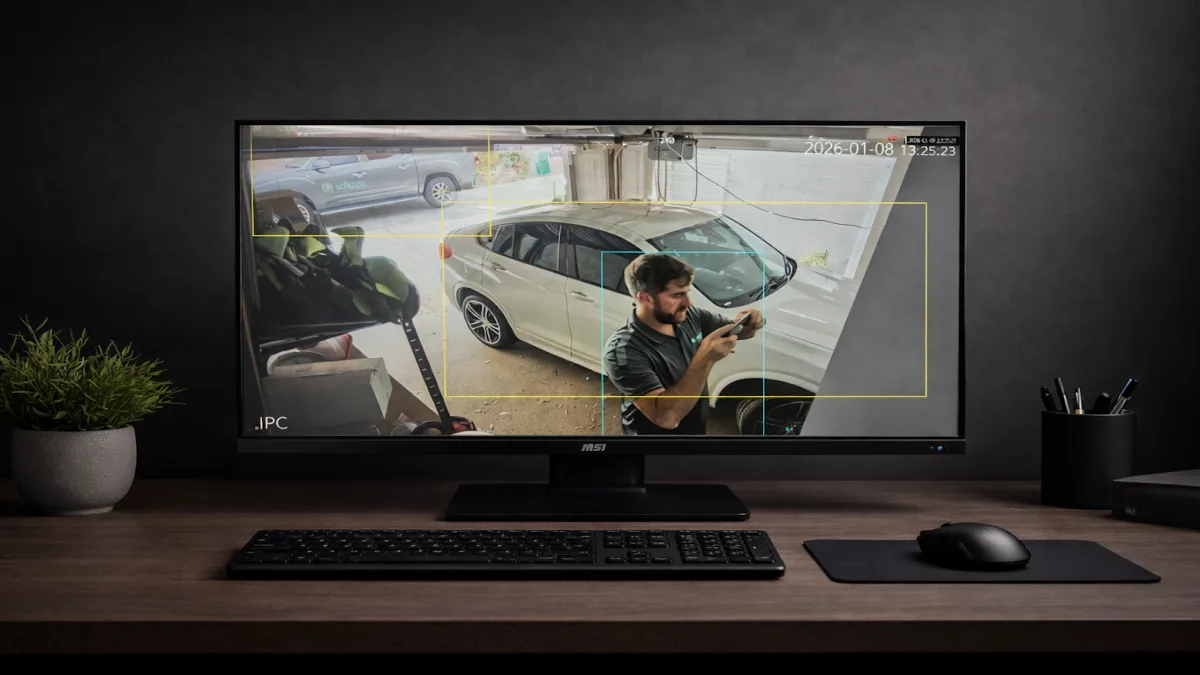
Exporting is genuinely easy on every modern system — once you know where the buttons are and what police actually want handed over. We install and service Hikvision, Dahua and UniFi systems across Perth, and we've walked plenty of customers through this exact process after an incident.
First: What Police Actually Need
Before touching menus, get these right — they matter more than the brand of recorder:
- The native file with a player, or a clean MP4. Recorders export either their native format (which bundles a small player program) or MP4. Both are accepted in practice; MP4 is easier for everyone. Never film your screen with a phone unless it's truly the only option — it destroys plate and face detail.
- The whole clip, unedited. Export a continuous window from before the incident to after it — don't trim it to the "good bit" or edit it in any way. Continuity matters for evidence.
- All relevant cameras, not just the best one. The street camera that caught the car arriving can matter more than the porch camera that caught the face.
- The correct date and time. If your recorder's clock is wrong, tell the officer the offset ("recorder runs 12 minutes fast") — don't quietly fix the clock between the incident and the export.
- A USB stick they can keep. Police won't return it quickly, if at all. A cheap stick, formatted before use (FAT32 or exFAT — more below).
- Your details: address, camera positions, and the report/reference number for the incident.
Officers will sometimes just ask you to email or upload a clip for smaller matters — ask what they prefer — but a USB handed over at the scene is the classic path.
One habit we push on every job: when footage matters for police or insurance, export directly from the recorder onto a hard drive or USB — not from the phone app. The recorder gives you the full-quality original; app exports are convenient but they're not what you want handed to an investigator.
Protect the Footage First
Recorders overwrite oldest footage automatically — typical home systems keep somewhere between a few days and a few weeks depending on hard drive size, camera count and recording settings. The moment you know footage matters:
- Export it now, not after the weekend.
- Lock the clip if your recorder supports it (Hikvision and Dahua both let you lock/protect files against overwrite in the playback menu).
- If the system's damaged or you can't drive it, pull the power and leave it — footage on the disk survives; hours of fumbling in menus while it keeps overwriting doesn't help. Then call us.
Hikvision (NVR/DVR, Local Interface)
- Plug a USB stick into the recorder's front or back USB port.
- From the main menu, open Playback.
- Select the camera(s) and use the calendar/timeline to find the incident.
- Set the clip: use the start/stop clipping (scissors) control on the timeline to mark the window you want.
- Press Export (or the save/clip icon), choose the USB device, and pick the format — export with player if offered, or MP4 on newer firmware.
- Wait for "Export finished" before removing the stick, and check the files open on a computer.
Through the Hik-Connect app or iVMS software you can also download clips remotely, but the local export is the most reliable route for evidentiary footage. (Menu labels vary slightly between firmware versions — the Playback → clip → export flow is the constant.)
Dahua (NVR/DVR, Local Interface)
- USB stick into the recorder.
- Main menu → Playback (or Search).
- Pick cameras and date, find the incident on the timeline.
- Use the clip/scissors tool to mark start and end, then hit the save/backup icon.
- In the backup dialog, select the USB device and format — DAV is Dahua's native format (the export includes a player); MP4 plays anywhere. MP4 is the friendlier handover.
- Wait for completion, verify on a computer.
Dahua's Backup menu (rather than Playback) does the same job if you know the exact time window — select channel, start/end time, format, and export.
UniFi Protect
UniFi is the easy one — it's all through the web app or mobile app:
- Open Protect, go to the camera's timeline.
- Find the event (motion/smart detections make this quick).
- Use the download/export control to save the clip — Protect exports standard MP4.
- Copy the MP4 to a USB stick for police, or attach it digitally if that's what the officer asked for.
Because Protect exports MP4 natively, there's no player-software dance — but the same rules apply: continuous clip, all relevant cameras, correct timestamps.
USB Formats: The 4GB Gotcha
Most recorders are happiest with FAT32, and every computer reads it — but FAT32 can't hold a single file over 4GB. Long multi-camera exports hit that wall; the recorder either splits files or fails partway. If your recorder supports exFAT, it avoids the limit. Practical rule: format the stick fresh (FAT32 for short clips, exFAT for long ones), and export in camera-by-camera chunks rather than one giant file.
Retention: The Part to Fix Before You Need It
Every one of these exports depends on the footage still existing. When we service a system we check retention against what the owner actually assumes — the number of days of storage you have is a design decision (drive size, resolution, motion-only vs continuous recording), not luck. If your recorder only holds four days and you travel for two weeks, that's a gap worth closing — business systems are typically specified for 30–90 days of retention as part of a commercial CCTV installation for exactly this reason. Registering public-facing cameras on Cam-Map WA also means police ask for footage sooner, while it still exists.
And a quiet word on the legal side: footage only helps if it was lawfully recorded in the first place — camera placement and audio settings matter, covered in our WA camera laws guide. That guide is general information, not legal advice.
FAQs
What format does CCTV footage need to be in for police?
A continuous, unedited clip in the recorder's native format (with its bundled player) or MP4. MP4 is the most convenient for everyone. Avoid filming the screen with your phone — it wrecks the detail that identifies people and plates.
How long do home CCTV systems keep footage?
Typically from a few days to a few weeks before overwriting, depending on hard drive size, number of cameras and recording settings. If footage matters, export and lock it immediately — don't assume it'll still be there next week.
Should I edit or trim the footage before handing it over?
Export a continuous window around the incident and leave it unedited. Trimming to highlights or editing clips undermines its value as evidence. If the window is long, export it in whole continuous chunks.
The recorder's clock is wrong — does it matter?
Yes, but handle it correctly: tell police the offset rather than silently correcting the clock after the incident. The mismatch between real time and recorded time needs to be documented, not erased.
Can I email footage to WA Police instead of using a USB?
Often, yes — officers frequently accept emailed or uploaded clips for minor matters, and will tell you which they want. USB handover remains the default for anything serious. Either way, keep your own copy.
My system was stolen or smashed in the break-in — is the footage gone?
Not necessarily. If the recorder is present but damaged, footage usually survives on the hard drive and can be recovered. If the recorder itself was taken, this is the argument for cloud backup or a recorder in a locked, hidden location — something we design into installs.
Would Your System Produce Usable Evidence?
Too few days of storage, cameras too blurry for plates, recorder sitting in plain view — if any of that sounds familiar, we'll fix it before you need it.